> ## Documentation Index
> Fetch the complete documentation index at: https://utexo-e7ed9bd0-update.mintlify.site/llms.txt
> Use this file to discover all available pages before exploring further.
# Upgrade RLN Node
## UI Upgrade Flow
When an RLN node is outdated, users will see a notification block on the Node Page prompting them to upgrade.
### Notification Block
The notification will appear at the top of the node details page and include the following message:
> "Please note: Your current RLN image version is no longer supported. Update your node to the latest version."
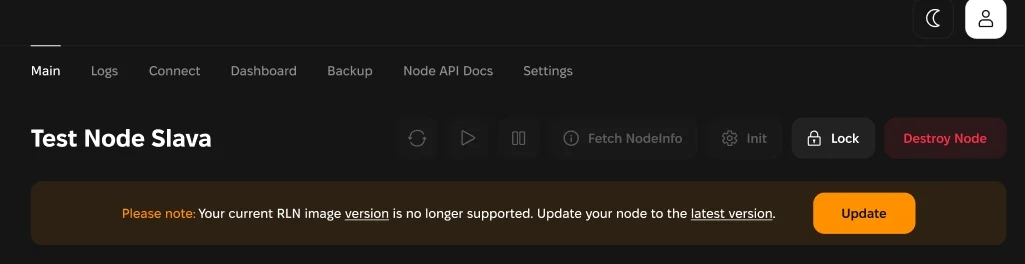 * Navigate to the node page where the notification block appears.
* Click the **"Update"** button to trigger the upgrade process.
* This action initiates the upgrade to the latest RLN image version.
* The upgrade process may take a few minutes.
* During this time, the node will be **locked**.
* Once the upgrade is complete, the node will remain **locked**.
* To resume using the node:
* Click the **"Unlock"** button displayed on the node page.
* After unlocking, the node will be fully operational and updated to the latest version.
## Automatic Bulk Upgrade (Scale or Wallet Plan Feature)
For users subscribed to the Scale or Wallet Plan, the system provides automatic bulk upgrades.
### How Automatic Bulk Upgrades Work
* When a new RLN image version is released, all user nodes are **automatically upgraded** to the latest version.
* Users will **not** need to manually trigger the upgrade process.
### Post-Upgrade Requirement: Unlock Nodes
After the automatic upgrade, all upgraded nodes will be locked. To continue using each node:
1. Navigate to the Node Page for the respective node.
2. Click the **"Unlock"** button to unlock the node.
### Important Notes for Wallet Plan Users
* Automatic bulk upgrades ensure all nodes stay up-to-date without user intervention.
* However, **manual unlocking** is required for **each upgraded node** to resume functionality.
## Upgrade RLN Node Using the API
This section explains how to upgrade RLN nodes programmatically using API endpoints. Follow the steps below to check, trigger, and finalize an upgrade.
**Endpoint**
```text theme={null}
GET /api/nodes/latest-rln-image
```
**Description**
Fetch the latest version of the RLN node image available for upgrade.
**Action**
* Compare your node's current `rln_commit_id` with the `data` in the response.
* If the values differ, an **upgrade is required**.
**Endpoint**
```text theme={null}
POST /api/nodes/{id}/upgrade
```
**Description**
Trigger an upgrade for a specific node to the latest version.
**Action**
Initiate the upgrade process for the specified node.
**Endpoint**
```text theme={null}
POST https://node-api.thunderstack.org/${userId}/${nodeId}/unlock
```
**Description** After the upgrade is complete, nodes remain **locked**. Unlock the node to continue using it.
* Navigate to the node page where the notification block appears.
* Click the **"Update"** button to trigger the upgrade process.
* This action initiates the upgrade to the latest RLN image version.
* The upgrade process may take a few minutes.
* During this time, the node will be **locked**.
* Once the upgrade is complete, the node will remain **locked**.
* To resume using the node:
* Click the **"Unlock"** button displayed on the node page.
* After unlocking, the node will be fully operational and updated to the latest version.
## Automatic Bulk Upgrade (Scale or Wallet Plan Feature)
For users subscribed to the Scale or Wallet Plan, the system provides automatic bulk upgrades.
### How Automatic Bulk Upgrades Work
* When a new RLN image version is released, all user nodes are **automatically upgraded** to the latest version.
* Users will **not** need to manually trigger the upgrade process.
### Post-Upgrade Requirement: Unlock Nodes
After the automatic upgrade, all upgraded nodes will be locked. To continue using each node:
1. Navigate to the Node Page for the respective node.
2. Click the **"Unlock"** button to unlock the node.
### Important Notes for Wallet Plan Users
* Automatic bulk upgrades ensure all nodes stay up-to-date without user intervention.
* However, **manual unlocking** is required for **each upgraded node** to resume functionality.
## Upgrade RLN Node Using the API
This section explains how to upgrade RLN nodes programmatically using API endpoints. Follow the steps below to check, trigger, and finalize an upgrade.
**Endpoint**
```text theme={null}
GET /api/nodes/latest-rln-image
```
**Description**
Fetch the latest version of the RLN node image available for upgrade.
**Action**
* Compare your node's current `rln_commit_id` with the `data` in the response.
* If the values differ, an **upgrade is required**.
**Endpoint**
```text theme={null}
POST /api/nodes/{id}/upgrade
```
**Description**
Trigger an upgrade for a specific node to the latest version.
**Action**
Initiate the upgrade process for the specified node.
**Endpoint**
```text theme={null}
POST https://node-api.thunderstack.org/${userId}/${nodeId}/unlock
```
**Description** After the upgrade is complete, nodes remain **locked**. Unlock the node to continue using it.