UI Upgrade Flow
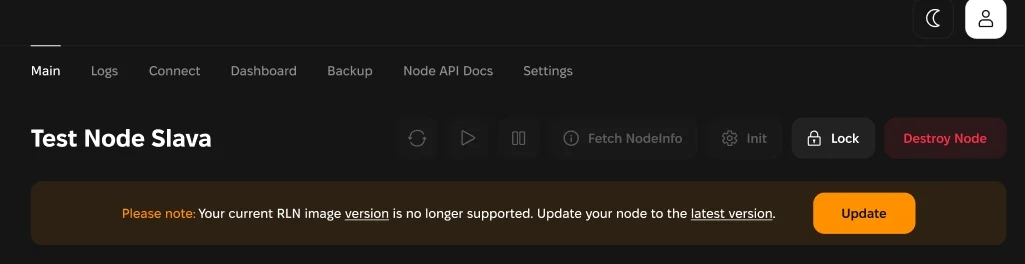
When an RLN node is outdated, users will see a notification block on the Node Page prompting them to upgrade.Notification Block
The notification will appear at the top of the node details page and include the following message:“Please note: Your current RLN image version is no longer supported. Update your node to the latest version.”
Wait for the Upgrade to Complete
- The upgrade process may take a few minutes.
- During this time, the node will be locked.
Automatic Bulk Upgrade (Scale or Wallet Plan Feature)
For users subscribed to the Scale or Wallet Plan, the system provides automatic bulk upgrades.How Automatic Bulk Upgrades Work
- When a new RLN image version is released, all user nodes are automatically upgraded to the latest version.
- Users will not need to manually trigger the upgrade process.
Post-Upgrade Requirement: Unlock Nodes
After the automatic upgrade, all upgraded nodes will be locked. To continue using each node:- Navigate to the Node Page for the respective node.
- Click the “Unlock” button to unlock the node.
Important Notes for Wallet Plan Users
- Automatic bulk upgrades ensure all nodes stay up-to-date without user intervention.
- However, manual unlocking is required for each upgraded node to resume functionality.
Upgrade RLN Node Using the API
This section explains how to upgrade RLN nodes programmatically using API endpoints. Follow the steps below to check, trigger, and finalize an upgrade.Check the Latest RLN Image
EndpointDescriptionFetch the latest version of the RLN node image available for upgrade.Action
- Compare your node’s current
rln_commit_idwith thedatain the response. - If the values differ, an upgrade is required.
2
Trigger the Node Upgrade
EndpointDescriptionTrigger an upgrade for a specific node to the latest version.ActionInitiate the upgrade process for the specified node.
3
Unlock the Node After Upgrade
EndpointDescription After the upgrade is complete, nodes remain locked. Unlock the node to continue using it.